This guide covers every button on the TI-84 Plus CE — what it does, when to use it, and why it matters. Whether you just picked one up or you've been using it for years, there's something here you probably didn't know.
TI-84 Plus CE
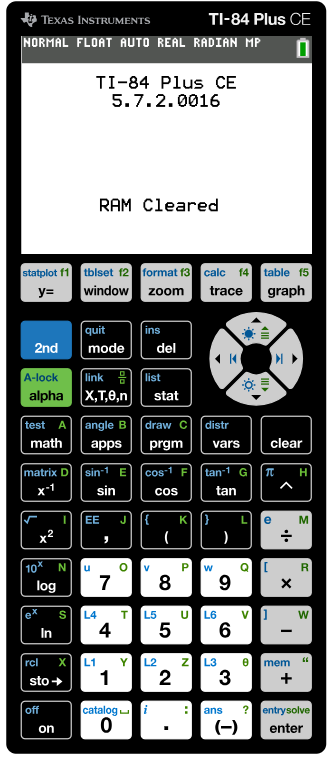
Texas Instruments' flagship graphing calculator, accepted on the SAT, ACT, AP exams, and most standardized tests. The screen shown above displays "RAM Cleared" — the confirmation message after a factory reset.
Screen: Color LCD, 320×240 px
Memory: 154 KB RAM, 3 MB Flash
Battery: Rechargeable Li-ion
Weight: 190 g (6.7 oz)
What Is the TI-84 Plus CE?
The TI-84 Plus CE is a graphing calculator made by Texas Instruments. It's been the go-to calculator for high school and college students for over two decades — not because it's the flashiest device on the market, but because it's dependable, widely permitted on standardized tests, and powerful enough to handle everything from basic arithmetic to calculus, statistics, and matrix algebra.
The "CE" stands for Color Edition. Compared to older TI-84 models, the CE has a full-color backlit screen, a slimmer design, and a rechargeable battery instead of AAA cells. It runs the same core software, so anything you learned on an older model transfers directly.
The calculator has 10 rows of keys, each with multiple functions. Most keys do at least two things — their primary function printed on the key itself, and a secondary function printed in small text above the key (accessed by pressing 2nd first). Some keys also have a letter function accessed via ALPHA.
Good to know
The status bar at the top of your screen tells you a lot. "NORMAL FLOAT AUTO REAL RADIAN MP" — visible in the image above — means the calculator is in standard notation, floating decimal mode, auto simplification, real number mode, radian angle mode, and MathPrint display. You can change all of these through the MODE menu.
The Screen and Status Bar
Before diving into buttons, it helps to understand what the screen is telling you. The top row of the display shows your current mode settings. Here's what each term means:
NORMAL FLOAT AUTO REAL RADIAN MP
TI-84 Plus CE
5.7.2.0016
RAM Cleared
NORMAL — notation mode (vs. SCI for scientific notation or ENG for engineering). FLOAT — decimal display (auto-adjusts decimal places). RADIAN — angle unit for trig functions; switch to DEGREE mode for degree-based problems. MP — MathPrint is on, meaning the calculator displays fractions and exponents in natural textbook format.
Every Button, Explained
The TI-84 Plus CE has 50 keys arranged in functional groups. Here's every one of them.
Graph and table functions Top row
Y=
Y= editor. Where you type equations to graph. Enter up to 10 functions (Y1 through Y9, Y0). Each can be toggled on or off by moving the cursor to the = sign and pressing ENTER.
WINDOW
Window settings. Sets the visible area of your graph. Xmin, Xmax, Ymin, Ymax define the corners. Xscl and Yscl set how often tick marks appear on the axes.
ZOOM
Zoom presets. Quickly jump to standard view (ZStandard), zoom to fit (ZoomFit), zoom in on trig graphs (ZTrig), or zoom into a square aspect ratio (ZSquare). ZBox lets you draw a zoom rectangle manually.
TRACE
Trace mode. Moves a cursor along a graphed function and shows exact x and y coordinates at each point. Press a number to jump to a specific function. Useful for reading off values without calculating.
GRAPH
Display the graph. Renders whatever equations are in the Y= editor based on your current window settings. Press GRAPH any time to redraw.
Apps, mode, and table access Second row
2nd
Secondary function key. Pressing 2nd activates the function printed in small text above the next key you press. The cursor turns into a blinking arrow to remind you it's active. Used constantly — almost every key has a 2nd function.
MODE
Calculator settings. Controls notation, decimal precision, angle units (degrees vs. radians), coordinate display, and MathPrint. If your results look wrong, check MODE first.
DEL
Delete. Removes the character at the current cursor position (not the character to the left — that's done with the left arrow + DEL).
2nd INS
Insert mode (2nd + DEL). Switches the cursor from overwrite mode to insert mode so you can type new characters without deleting existing ones.
Navigation pad Navigation
▲▼◀▶
Directional pad. Moves the cursor on screen, navigates menus, and scrolls through graphs or tables. In TRACE mode, left and right move along the curve; up and down switch between multiple graphed functions.
ENTER
Execute / confirm. Runs calculations, confirms menu selections, and moves to the next item in lists. Also pastes the last answer into a new expression when pressed on a blank line.
2nd QUIT
Quit (2nd + MODE). Exits any menu or application and returns to the home screen. If the calculator seems stuck, pressing 2nd + QUIT almost always gets you out.
Math and science functions Math
MATH
Math menu. Gives access to fractions (Frac, Dec), cube roots, absolute value, numeric derivatives, integrals, summation (Σ), and the solver. This menu is where a lot of the calculator's power lives.
APPS
Installed apps. Texas Instruments ships the CE with several apps, including Cabri Jr. (geometry), Inequality Graphing, Periodic Table, and Transformation Graphing. You can install more via TI Connect CE software.
PRGM
Program menu. Create, edit, and run programs written in TI-BASIC. Students use this for formula storage, custom solvers, and games. Many teacher-built programs are freely available online.
VARS
Variables. Access stored values — Window variables (Xmin, Xmax, etc.), statistics results (mean, standard deviation), equation variables (Y1, Y2), and more. Essential for pulling calculated results into new expressions.
CLEAR
Clear. Clears the current line of input. Press it once to clear the line; press it from a blank home screen to clear the entire history. Does not clear stored variables.
x⁻¹
Reciprocal / inverse. Calculates 1/x for a number, or the inverse of a matrix. Crucial for matrix algebra — if A is a matrix, A + x⁻¹ + ENTER gives you A⁻¹.
SIN COS TAN
Trig functions. Standard sine, cosine, and tangent. Results depend on your angle mode (RADIAN or DEGREE). Use 2nd + SIN/COS/TAN for the inverse functions (arcsin, arccos, arctan).
x²
Square. Raises the preceding value to the power of 2. Faster than using the caret (^) key for squaring.
√
Square root (2nd + x²). Takes the square root of the expression that follows. For other roots, use MATH > 5 (x√) or the caret key with a fractional exponent.
LOG
Common log (base 10). Calculates log₁₀(x). Use 2nd + LOG for 10^x. For natural log, use the LN key.
LN
Natural log. Calculates ln(x) — the logarithm base e. Use 2nd + LN for e^x.
STO→
Store. Saves the current value into a variable. Type a value, press STO→, then press a letter key (A through Z or θ) to assign it. Example: 3.14159 → STO → P stores it in variable P.
Arithmetic operators Arithmetic
÷ × − +
Basic operations. Division, multiplication, subtraction, addition. Standard left-to-right with proper order-of-operations (PEMDAS). Use parentheses to override.
^
Exponent (caret). Raises to any power. Use this for roots too: 8^(1/3) gives the cube root of 8. Works with negative and fractional exponents.
(−)
Negative sign. This is different from the subtraction key. Use (−) for negative numbers like −5, and − (the minus key) for subtraction like 10 − 3. Mixing them up causes ERR: SYNTAX.
( )
Parentheses. Group expressions. Also required for function arguments — SIN(30) not just SIN 30. The calculator will often close parentheses for you, but it's good practice to close them yourself.
,
Comma. Separates arguments inside functions. Example: randInt(1,6) generates a random integer from 1 to 6.
STAT
Statistics menu. Edit data lists (L1, L2…), run one-variable and two-variable stats, calculate linear regression, and more. Central to any stats or data analysis work.
ANS
Answer (2nd + (−)). Pastes the result of the last calculation into the current expression. Saves retyping. Also auto-appears when you start a new expression with an operator (+, ×, etc.).
ENTRY
Last entry (2nd + ENTER). Recalls the previous expression so you can edit and re-run it. Press repeatedly to scroll back through your history.
0–9
Number keys. Input digits. Each also has an ALPHA function for entering letters (needed for variable names, program code, and text strings).
.
Decimal point. Standard. In MATHPRINT mode, fractions display as stacked fractions — use the MATH > Frac option to convert decimals to fractions automatically.
Frequently used 2nd functions 2nd functions
MEM
Memory (2nd + +). Opens the memory management menu — where you go to reset the calculator, manage RAM, archive programs, and check storage. The "RAM Cleared" message in the image above comes from this menu. If you want to read more about this, check out our piece on how to completely reset your calculator.
LIST
List operations (2nd + STAT). Access list math functions: sum, mean, max, min, sort. Indispensable for statistics.
TABLE
Table view (2nd + GRAPH). Shows a numeric table of x and y values for your graphed functions. Great for checking specific values without tracing or calculating one by one.
TBLSET
Table settings (2nd + WINDOW). Set the starting x value and increment for the table view.
CALC
Calculate (2nd + TRACE). Gives you powerful graph analysis tools: find zeros (roots), find minimum and maximum values, find intersections between curves, calculate definite integrals, and evaluate derivatives at a point.
DISTR
Distributions (2nd + VARS). Probability distributions for stats: normalcdf, invNorm, binomcdf, binompdf, and more. Frequently needed in AP Statistics.
FORMAT
Graph format (2nd + ZOOM). Toggle grid lines on/off, switch between rectangular and polar coordinates, turn axes on/off, and change expression display on the graph screen.
What the TI-84 Is Actually Good At
📈
Graphing functions
Plot up to 10 equations simultaneously in the Y= editor. Find intersections, zeros, and turning points using the CALC menu.
📊
Statistics
Enter data into L1 and L2, run 1-Var Stats for mean/std dev, or perform linear regression to find line-of-best-fit equations.
🔢
Matrix algebra
Store matrices using 2nd + x⁻¹ (MATRIX), then multiply, invert, or find determinants with standard operations.
∫
Calculus
Compute numeric derivatives (nDeriv) and definite integrals (fnInt) from the MATH menu. Useful for checking hand-calculated answers.
Common Mistakes (and How to Avoid Them)
Using − instead of (−) for negatives. The subtraction key and the negative sign are different buttons. Writing −5 in an expression requires the (−) key at the bottom right, not the minus key in the right column. Using the wrong one triggers ERR: SYNTAX.
Wrong angle mode. If your trig answers are off, check MODE. Radian mode gives sin(90) ≈ 0.894 while Degree mode gives sin(90) = 1. Most high school problems want Degree mode; most calculus problems want Radian.
Forgetting to close parentheses. The TI-84 is forgiving about trailing parentheses in some cases, but not all. When in doubt, close every set you open.
Stored variables from previous problems. The calculator holds onto variables between sessions. If you stored something in X last week, it's still there. A RAM reset (2nd → + → 7 → 1 → 2) clears all stored variables. Our full tutorial on how to clear TI-84 memory breaks down exactly what data gets erased and when you should do it.
Test day reminder
Most standardized tests (SAT, ACT, AP) permit the TI-84 Plus CE in calculator-active sections. Programs and apps may or may not be allowed depending on the exam — check the official policy before test day. When in doubt, perform a RAM reset before entering the exam room.
Getting the Most Out of It
The TI-84 Plus CE rewards students who take the time to explore its menus. The MATH menu alone contains tools that most people never touch — the numeric solver, sum functions, and the integer functions hidden in MATH > NUM. The CATALOG (2nd + 0) lists every single function available on the calculator, searchable alphabetically.
If you want to learn programming, TI-BASIC is a simple, readable language built directly into the calculator. Programs run from the PRGM menu, and you can write them on the calculator itself or transfer them from a computer using TI Connect CE software (free from Texas Instruments).
For test prep specifically, the most valuable skills to practice are: using the CALC menu to find zeros and intersections on graphs, running regression from the STAT menu, and converting between fractions and decimals using MATH > Frac and MATH > Dec. Those three workflows cover the majority of calculator-based questions on the SAT and ACT.
This guide covers the TI-84 Plus CE running OS version 5.x. Button locations and menu structures are the same across the TI-84 Plus, TI-84 Plus Silver Edition, and TI-84 Plus CE unless otherwise noted. Texas Instruments is the manufacturer; this is an independent reference guide. If you're using an older device with slightly different buttons, try our TI-83 Plus calculator online for quick graphing without the hassle.
Don't want to use a physical calculator?
If you want a simpler alternative, try our completely free online TI-84 calculator tool to perform all your graphing and statistics without worrying about memory limits.
Mohammad Mushtaq
I’m Mohammad Mustaq, a web developer, blog expert, and SEO specialist who creates efficient online tools like the TI-84 calculator online. I use my coding expertise to turn complex problems into simple solutions, delivering high-value tools that make everyday tasks easier and more productive.
Connect on LinkedIn